
The Covering Skills feature must be activated to use this functionality.
The covering skills functionality allows Department Administrators to group skills by designating some skills as qualified to “cover” for other skills. For example, in some departments Learning Practical Nurses (LPN) may cover Registered Nurse (RN) shifts. When this feature is activated, and LPNs are configured as covering skills for RNs, LPNs can self-schedule, request to fill open needs, and accept shift trades for RN assignments.
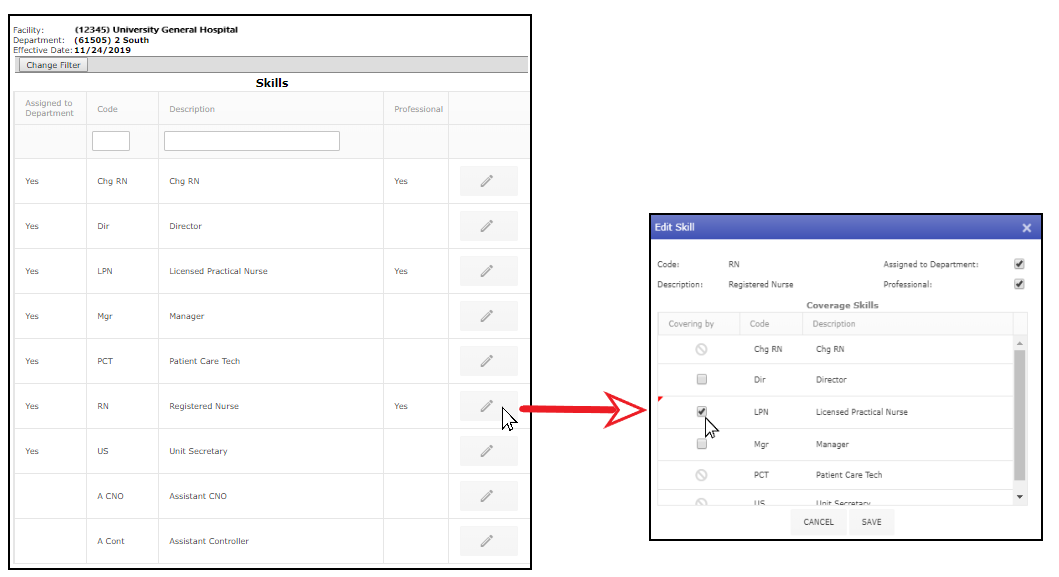
Department Skills List and Edit Skills Screen Showing Covering Skills
When a staff member with a covering skill is scheduled, they are listed in the department schedule and daily roster; however, their shift(s) count towards the covered skill’s staffing target. In our example, LPN displays on the daily roster, but counts toward the RN staffing level. An asterisk displays next to the number in the staffing level Difference column when a covering skill is included in the calculation.
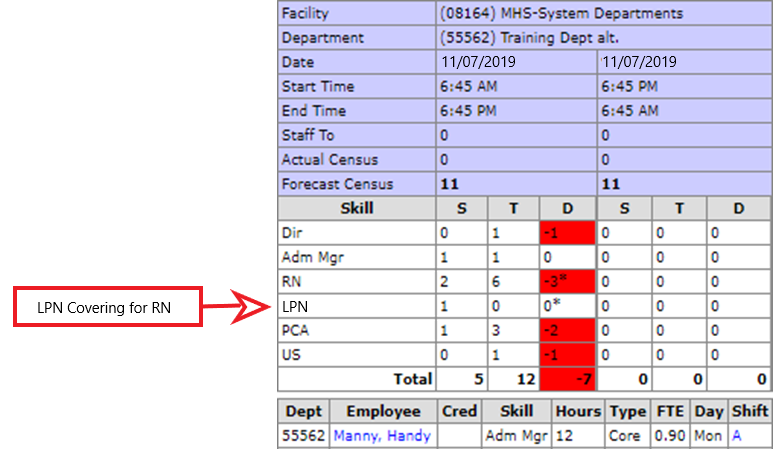
Daily Roster Showing Skill and Covering Skill
Likewise, staffing reports will display an asterisk to indicate covering skills are included in staffing target calculations.
Covering Skills are managed from the Department > Skills screen. When configuring covering skills, keep the following in mind:
Skills included in the department staffing matrix cannot be designated as covering skills. For example, if LPNs are included in the department staffing matrix, they cannot be selected as covering skills for any other skill.
When configured and saved, the covering skill is immediately effective.
The department setting Limit Scheduling to Target must be set to Yes to allow self-scheduling by covering skills.
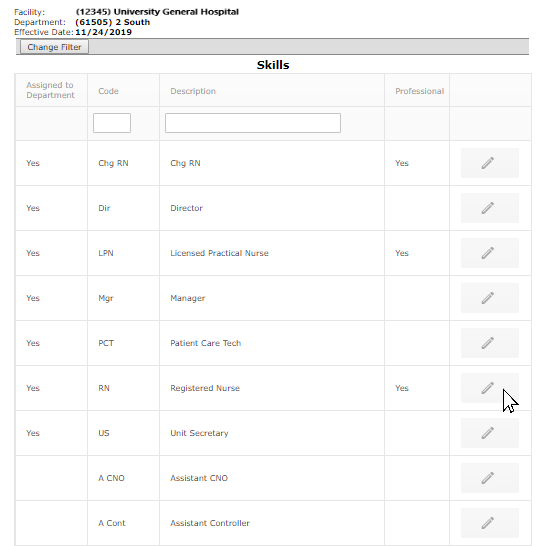
1. In the main navigation bar, click Department > Skills to view the skills list.
2. Click the Edit button for the primary skill to which you wish to add covering skills. In our example, we will select Registered Nurse.
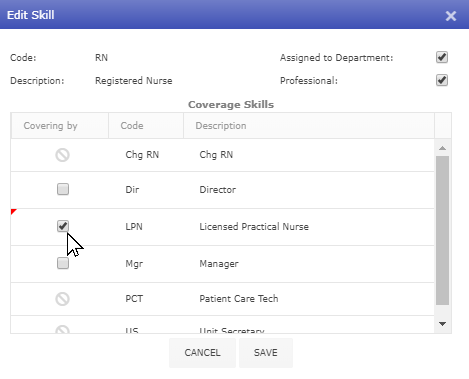
3. The Edit Skill window lists the skills associated with the department.
4. Skills that have a utilization level of zero in the department skills matrix can be selected to cover for the primary skill - otherwise the skill is blocked and cannot be selected.
5. Click Save to save your selection.
Staff with covering skills who wish to request an open shift or accept a shift trade will see needs and shifts for both their assigned skill and the skills for which they can cover. If covering skills are configured, the requestor’s primary skill is displayed in the Open Needs and Shift Trade approval screens